[Get the best value mic to camera on Amazon today!]
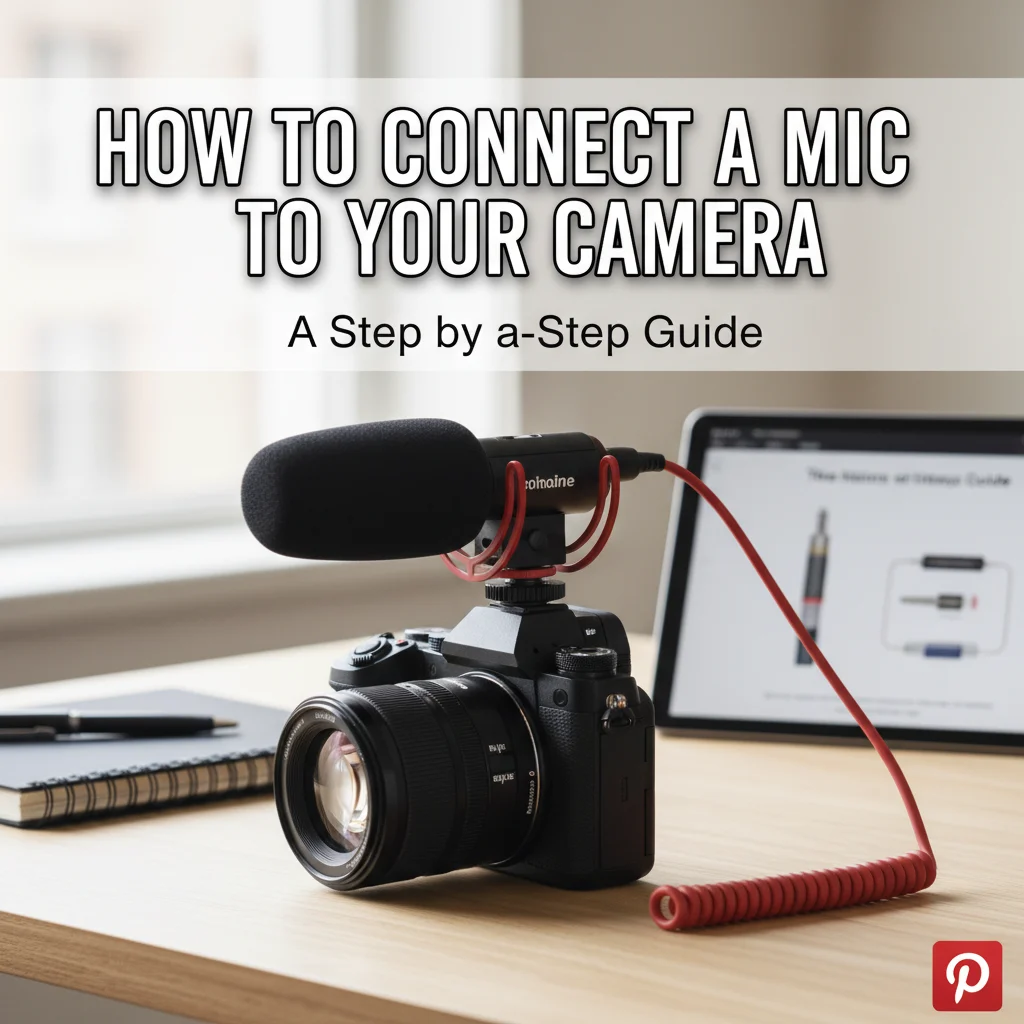
# How to Connect a Mic to Your Camera: A Step-by-Step Guide
Connecting an external microphone to your camera can dramatically improve the audio quality of your videos. Whether you’re a vlogger, filmmaker, or just want clearer sound for your home movies, this step-by-step guide will walk you through everything you need to know about connecting a **mic to camera** and getting the best possible audio. It’s easier than you think!
[Browse top-rated mic to camera on Amazon]
## Step 1: Identify Your Camera’s Audio Input
The first step is understanding what type of audio input your camera has. Most cameras offer one of two options:
1. **3.5mm Microphone Input:** This is the most common type of input, resembling a standard headphone jack. It’s usually labeled with a microphone icon.
2. **XLR Input:** Found on more professional cameras, XLR inputs provide a balanced audio signal, resulting in less noise and higher quality sound.
Check your camera’s manual or look closely at the ports on your camera body to determine which type of input you have. This will dictate the type of microphone and any adapters you’ll need.
[Browse top-rated mic to camera on Amazon]
## Step 2: Choose the Right Microphone
Selecting the right microphone is crucial for achieving the desired audio quality. Here are some common microphone types and their best uses:
1. **Lavalier Microphones (Lapel Mics):** These small, clip-on mics are ideal for interviews, presentations, and situations where you need to be hands-free. They provide clear audio and are discreet.
2. **Shotgun Microphones:** Designed to pick up sound from a specific direction, shotgun mics are excellent for capturing dialogue in noisy environments or when you can’t place the microphone close to the subject. They are often used in filmmaking and outdoor video recording.
3. **Handheld Microphones:** These are versatile microphones suitable for interviews, live performances, and general recording. They offer good sound quality and are easy to use.
4. **On-Camera Microphones:** These mics mount directly on your camera and are a convenient option for improving the built-in microphone’s audio quality. They’re typically compact and easy to set up.
Consider the type of recording you’ll be doing most often when choosing your microphone. For this guide, we’ll mostly focus on connecting lavalier and shotgun mics as they are the most popular choices for video recording.
[Browse top-rated mic to camera on Amazon]
## Step 3: Gather Necessary Accessories
Depending on your camera and microphone setup, you may need some additional accessories:
1. **Adapter Cables:** If your microphone has a different connector than your camera’s input (e.g., XLR microphone to 3.5mm input), you’ll need an adapter cable. Be sure to get the correct adapter to ensure compatibility.
2. **Audio Recorder:** For professional audio quality and more control over your recordings, consider using an external audio recorder. This allows you to record audio separately from the video, giving you greater flexibility in post-production.
3. **Shock Mount:** A shock mount isolates the microphone from vibrations, reducing unwanted noise and improving the clarity of your recordings.
4. **Deadcat Windscreen:** Essential for outdoor recording, a deadcat windscreen minimizes wind noise, ensuring clear audio even in breezy conditions.
5. **Extension Cables:** If you need to place the microphone further away from the camera, an extension cable will provide the necessary length.
[Browse top-rated mic to camera on Amazon]
## Step 4: Connecting a 3.5mm Microphone to Your Camera
This is the most straightforward connection.
1. **Plug the Microphone into the Camera:** Simply insert the 3.5mm connector of your microphone into the 3.5mm microphone input on your camera. Make sure it’s securely plugged in.
2. **Secure the Microphone (if applicable):** If you’re using a lavalier mic, clip it to your subject’s clothing. If you’re using an on-camera mic, attach it to the camera’s hot shoe mount. If using a shotgun mic, attach it to a boom pole or stand and position it close to the subject.
3. **Adjust Camera Settings:** Navigate to your camera’s audio settings in the menu.
* **Disable Auto Gain Control (AGC):** AGC can introduce unwanted noise and pumping effects. It’s best to disable it and manually adjust the audio levels.
* **Adjust Input Level:** Set the input level so that the audio signal peaks around -12dB to -6dB on your camera’s audio meter. This will provide a good signal-to-noise ratio without clipping.
* **Turn on “Plug-in Power” (if needed):** Some microphones require “plug-in power” (also called “phantom power” on some cameras) to operate. This is a small voltage supplied by the camera to power the microphone. Check your microphone’s specifications to see if it requires plug-in power.
[Browse top-rated mic to camera on Amazon]
## Step 5: Connecting an XLR Microphone to Your Camera
Connecting an XLR microphone requires a few extra steps:
1. **Use an XLR to 3.5mm Adapter (if necessary):** If your camera only has a 3.5mm input, you’ll need an XLR to 3.5mm adapter cable. Plug the XLR end of the cable into the microphone and the 3.5mm end into the camera’s microphone input.
2. **Connect Directly to XLR Input (if available):** If your camera has an XLR input, plug the XLR cable directly from the microphone into the camera.
3. **Adjust Camera Settings:** Similar to connecting a 3.5mm microphone, you’ll need to adjust your camera’s audio settings:
* **Disable Auto Gain Control (AGC):** As before, disable AGC for better control over your audio.
* **Adjust Input Level:** Set the input level to peak around -12dB to -6dB.
* **Enable Phantom Power (if needed):** XLR microphones often require 48V phantom power to operate. Enable phantom power in your camera’s audio settings if your microphone requires it.
[Browse top-rated mic to camera on Amazon]
## Step 6: Test Your Audio
Before you start recording, it’s essential to test your audio to ensure everything is working correctly.
1. **Record a Short Test Clip:** Record a short clip of yourself speaking or performing in the environment where you’ll be recording.
2. **Play Back the Clip:** Listen to the clip through headphones to check the audio quality.
* **Listen for Noise:** Pay attention to any unwanted noise, such as hum, hiss, or wind noise. Adjust your microphone placement or settings to minimize noise.
* **Check the Audio Levels:** Make sure the audio levels are consistent and not clipping (distorting due to excessive volume). Adjust the input level on your camera if necessary.
* **Ensure Clear Speech:** Verify that your voice is clear and easy to understand.
3. **Adjust and Repeat:** If you encounter any issues, adjust your microphone placement, camera settings, or accessories and repeat the testing process until you’re satisfied with the audio quality.
[Browse top-rated mic to camera on Amazon]
## Tools for the Job
Getting great audio doesn’t have to break the bank. Here are a couple of recommendations that can significantly improve your sound without costing a fortune:
* **Rode VideoMicro Compact On-Camera Microphone:** This is a fantastic entry-level shotgun microphone that’s super easy to use. Its key feature is its compact size, making it ideal for smaller cameras and vlogging setups. The VideoMicro dramatically improves audio compared to built-in camera mics, providing clearer and more directional sound.
* **Sennheiser ME 2-II Lavalier Microphone:** For interviews and situations where you need a discreet microphone, the Sennheiser ME 2-II is a great choice. Its key feature is its omnidirectional polar pattern, which captures sound evenly from all directions. This makes it forgiving in terms of placement and ensures consistent audio quality, even if the subject moves slightly.
[Browse top-rated mic to camera on Amazon]
## Pro-Tips / FAQ Section
* **What if my camera doesn’t have a microphone input?**
If your camera lacks a microphone input, you can use an external audio recorder and sync the audio with your video in post-production. Software like Adobe Premiere Pro or DaVinci Resolve makes this process relatively simple.
* **How do I reduce background noise?**
Minimizing background noise is crucial for clear audio. Here are some tips:
* **Choose a Quiet Location:** Record in a quiet environment away from traffic, crowds, or other sources of noise.
* **Use a Noise Gate:** A noise gate is an audio processing tool that automatically reduces or eliminates noise below a certain threshold. Many audio editing programs have built-in noise gates.
* **Use a Pop Filter:** When using a microphone close to your mouth, a pop filter can reduce or eliminate plosive sounds (e.g., “p” and “b” sounds) that can cause distracting pops in your audio.
* **Why is my audio muffled or distorted?**
Muffled or distorted audio can be caused by several factors:
* **Incorrect Microphone Placement:** Make sure the microphone is positioned correctly and not obstructed by clothing or other objects.
* **Low Battery:** If your microphone requires batteries, make sure they are fresh.
* **Incorrect Settings:** Double-check your camera’s audio settings to ensure the input level is set correctly and that AGC is disabled.
* **What is Phantom Power?**
Phantom power is a
[Check the latest prices and deals for mic to camera on Amazon today!]



![Timer Wall Switch: The Ultimate Buying Guide [2026]](https://www.bestlightweightcameras.com/wp-content/uploads/2026/03/timer-wall-switch-the-ultimate-buying-guide-2026-150x150.webp)